Can a few clear rules reverse the daily tide of interruptions and help someone get real work done?
This guide shows how to design a repeatable, practical approach that supports steady output over months and years, not bursts of motivation.
It defines what a personalized focus system looks like in practice: outcomes to aim for, boundaries to protect time, and a control layer that enforces choices across routines.
The article treats Apple Focus as a useful tool to apply those rules. But the real leverage comes from clear priorities, not just toggling settings.
Readers will learn to diagnose distraction loops, map rules to realistic schedules, set options in Settings and Control Center, and refine behavior with automation and filters.
This approach frames long-term productivity as sustainable output with recovery, leaving room for work, sleep, and personal life while reducing interruptions from notifications and casual distractions.
Why Focus Breaks in a Notification-First World
A constant stream of pings quietly determines how most workdays unfold. Modern expectations push instant availability, and phones deliver beeps, buzzes, and vibrations that cue automatic checks.
Common distraction loops: beeps, buzzes, and context switching
Each alert creates a simple loop: cue (beep), action (check), and reward (novelty or relief). That loop trains people to respond reflexively and amplifies minor interruptions into long interruptions.
- Context switching costs: Even quick checks fragment attention and extend task completion.
- Urgent vs. noisy: Unmanaged alerts let others set the agenda for your work.
What long-term productivity requires beyond willpower
Willpower is finite. Trying harder fails when the environment is engineered by apps to capture attention. Instead, assign an attention budget across the day.
“Protect peak cognitive time and build rules that enforce recovery.”
Boundaries reduce poorer sleep and weaker next-day performance caused by late alerts. The solution: design rules first, then apply settings and automation so the routine works even when someone is tired.
Define the Outcomes and Boundaries of a Personalized Focus System
Begin by naming the few scenarios that produce measurable results. Choose 3–5 modes — for example: Work, Deep Work, Sleep, and Personal — so the setup stays usable.
Pick scenarios and their definition of done
For each scenario, write a short definition of done. Examples: “ship a draft,” “finish a 60‑minute analysis,” or “read for 30 minutes.” Clear outcomes let the system protect results instead of busywork.
Set availability rules by people and channel
Create an Allowed People list that matches real responsibilities: manager, partner, child’s school, or key clients. Decide which contacts can call and which apps may send messages during protected blocks.
Decide what counts as urgent
Define objective urgent criteria: time‑bound deadlines, safety issues, or revenue/customer impact. Use a single escalation path — for example, a repeated call within five minutes — to reduce notification creep.
Protect sleep: add a short pre‑sleep buffer and silence late alerts so next‑day performance improves.
- Translate decisions to options: People, Apps, and Options choices will map directly when setting up Apple Focus.
- Keep the list tight: fewer modes mean fewer mistakes and better adherence.
Choose Focus Techniques and Cognitive Models That Match the Task
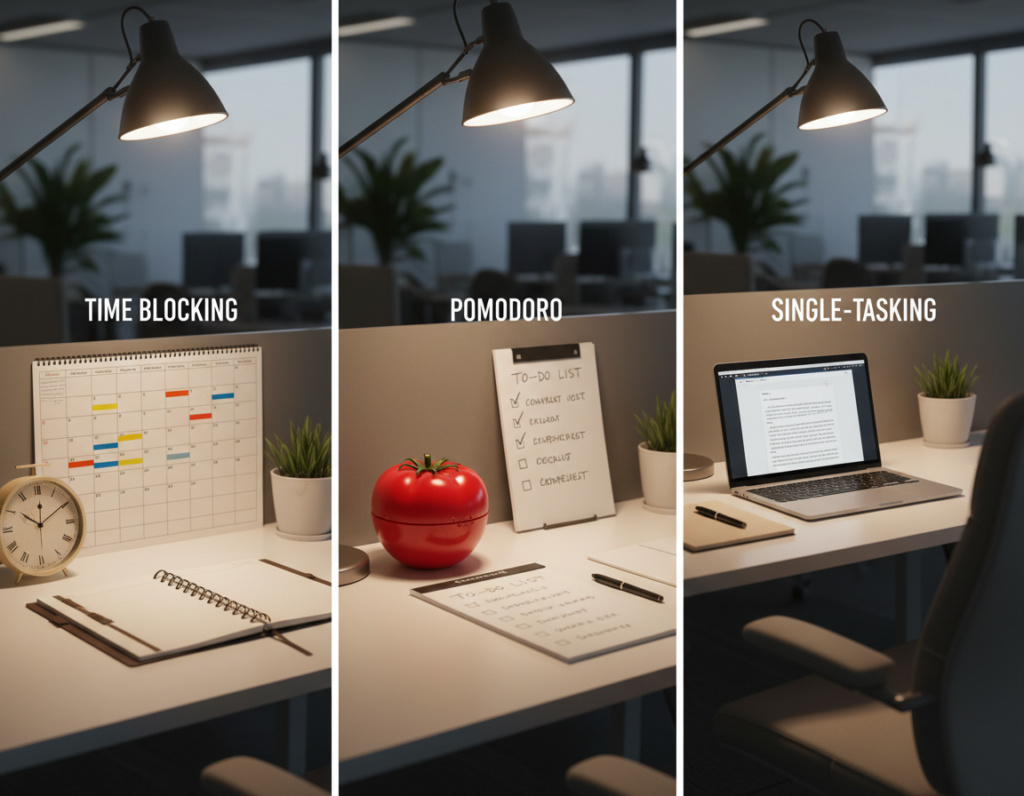
Choosing the right method for each task type makes time use more predictable and productive. Below are practical comparisons to help match technique to task, and to translate cognitive models into daily choices.
Techniques: best use and tradeoffs
| Technique | Best-use case | Tradeoff |
|---|---|---|
| Pomodoro (25/5) | Shallow tasks, stamina building | Interrupts long flow; good for start/stop work |
| Timeboxing (60–120 min) | Complex analysis, writing | Needs recovery blocks; harder on meetings days |
| Batching | Email, admin, chores | Delays responses; requires clear communication windows |
| One‑tab / single‑tasking | Coding, drafting | Less flexible for collaborative edits |
Models: how to operationalize productivity
| Model | Daily decision | Result on calendar |
|---|---|---|
| Deep Work blocks | Reserve morning maker time | Long uninterrupted blocks for creation |
| GTD (capture/clarify) | Process inbox in short sessions | Regular maintenance slots |
| Eisenhower matrix | Prioritize tasks daily | Short triage windows, then execution blocks |
Map to a weekly rhythm
Assign maker time for deep blocks, manager time for meetings and responses, and recovery time for exercise and rest.
Communication windows should be scheduled twice daily. Use those windows to clear messages so notifications do not fragment work. Set a matching option in your phone so alerts arrive only during those periods.
The goal is consistency: strict rules during deep work, flexibility for collaboration, and restorative recovery.
Next step: use Apple tools as the enforcement layer that makes these choices frictionless by controlling apps, people, screens, and filters.
Set Up Apple Focus as the System’s Control Layer
Make focus the place where boundaries meet behavior: notifications, screens, and apps obey the plan.
Open Settings > Focus to build or edit presets. For fast toggles, swipe to Control Center and choose Focus. This makes it easy to change modes between work and rest.
Start with a default preset: Work, Personal, Sleep, or Do Not Disturb. Learn the mechanics before creating custom profiles.
- People: allow calls and messages from real contacts who may need access during a block.
- Apps: permit only the apps needed for the current task.
- Options: control Lock Screen and Home Screen visibility and notification style.
- Screen behavior: hide distracting pages and limit widgets while a mode is active.
Use the Control Center tap focus button to turn modes on for a set time or until the next event. If Apple Intelligence is enabled, Reduce Interruptions shows only high‑priority alerts. Choose Intelligent Breakthrough and Silencing carefully so truly urgent items still come through.
Goal: align device behavior with current tasks, protect deep work and sleep, and avoid permanent silencing.
Create a Custom Focus That Fits Real Life (Not a Generic Routine)
Designing a custom mode that matches real work habits removes friction at the moment decisions matter.
To create custom modes, go to Settings > Focus > + > Custom and enter a clear name. Pick an icon and a distinct color so the mode is instantly recognizable.
Create an Allowed People list
Keep the contacts list small. Allow only those whose calls or texts qualify as true urgencies. That reduces interruptions while keeping essential lines open.
Choose allowed apps and tame attention traps
Allow only the apps needed for the task. Remove high‑noise social and chat apps by default. Hide widgets and badges to stop habitual checking.
Set Options and link a Lock Screen or Home Screen page
Use Options to control whether silenced notifications appear on the lock screen. Link the mode to a dedicated Lock Screen and a single Home Screen page so only relevant apps are visible.
Quick examples to copy
- Deep Work: allow calendar, notes; hide mail and social.
- Writing/Studying: allow research apps and one messaging contact.
- Gaming/Mindfulness/Reading: enable media apps, silence chat.
Make each custom focus match a real role or rhythm so the device supports work, rest, and play without extra thought.
Automate Focus So It Turns On at the Right Time and Place
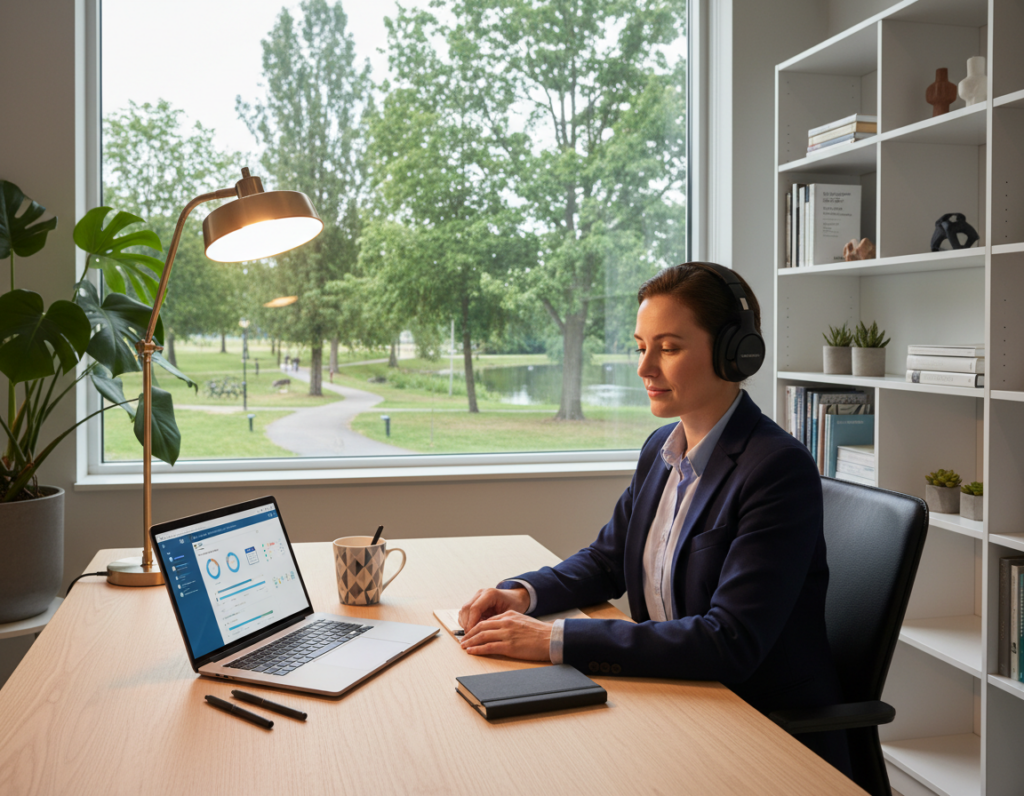
Relying on schedules and triggers ensures protected blocks kick in even if someone forgets. Automation makes the device enforce chosen boundaries so work and recovery time remain intact.
Add Schedule: time blocks that protect peak cognitive hours
Add Schedule supports Time, Location, App, or Smart Activation. Use realistic durations and a short buffer before and after deep work to reduce context switching.
Location and app triggers
Set a location trigger so a mode will automatically turn on at the office, library, or gym. App triggers can turn a focus on when opening a writing or coding app.
Smart Activation and Control Center quick toggles
Trust Smart Activation for stable routines. If schedules change often, keep manual control and use Control Center: tap focus, pick a duration from the menu, or use the quick Do Not Disturb button.
Automation should protect attention without removing human override.
| Trigger | Best use | When to trust | Human override |
|---|---|---|---|
| Time / Add Schedule | Peak maker blocks | Stable calendar | Turn off manually |
| Location | Office, gym, library | Workplace routine | Leave location to stop |
| App | Launch writing/editor apps | Consistent tool use | Close app or tap focus |
Audit monthly: check triggers still match real life, see focus indicators on the lock screen, and adjust schedules so notifications align with maker, manager, and recovery blocks.
Use Focus Filters to Reduce Cognitive Load Inside Apps
Instead of merely muting pings, filters shape the content inside apps to reduce mental clutter. They go beyond silencing by limiting what appears when an active mode is on.
What filters do and when they outperform silencing
Focus filters control in-app views: calendars, mailboxes, and message threads. This helps when someone must open an app for work but wants to avoid personal inputs that cause context switching.
How to set them up
Open Settings > Focus, choose a mode, scroll to Focus filters, and tap Add Filter. Then pick the app and the specific account or view to show.
Practical examples and limits
During a Work mode, show only a work calendar or a single mail account. That lets users consult schedules and email without seeing unrelated items or extra notifications.
Key limitation: filters do not sync across devices. Replicate critical filters on iPhone, iPad, and Mac as needed.
| Use case | Filter choice | Benefit |
|---|---|---|
| Morning deep work | Work calendar only | Fewer meeting distractions while planning |
| Email triage | Primary work mailbox only | Lower switching cost when processing messages |
| On-the-go checks | Selected message threads | Quick review without full inbox overwhelm |
Best practice: keep a minimum viable set of filters and apply them to the highest-impact apps first. This reduces setup friction and supports longer uninterrupted work blocks.
Maintain Consistency Across Apple Devices Without Over-Sharing
Keeping settings coherent across devices prevents small misconfigurations from turning into constant interruptions.
Share Across Devices
Enable Share Across Devices at Settings > Focus to sync modes across iPhone, iPad, Mac, and Apple Watch linked to the same Apple Account. This reduces duplicate setup and keeps behavior predictable when switching devices.
What syncs — and what does not
Most mode settings, allowed people, and allowed apps sync. Focus filters do not sync, so calendar and mailbox views must be set on each device separately. Expect the difference to avoid surprises.
Focus Status and privacy
Focus Status lets supported apps show contacts that notifications are silenced. It shows availability, not the mode name.
To stop sharing, open Settings > Focus, pick a mode, and toggle off Share Focus Status. Turn this off when working with clients or on sensitive matters.
Troubleshooting signals
Look for the crescent moon or a mode badge on the lock screen and top of device screens to confirm a mode is active.
If a notification got through, check allowed people, allowed apps, and Intelligent Breakthrough or silencing options first.
| Check | Where to look | Why it matters |
|---|---|---|
| Active mode icon | Top bar / Lock Screen | Confirms a mode is running |
| Share Across Devices | Settings > Focus | Ensures settings propagate to other devices |
| Focus Status | Mode settings | Controls whether contacts can see notifications are silenced |
| Allowed People & Apps | Mode configuration | Explains unexpected interruptions |
Quick checklist: verify the correct mode is active, confirm people/apps lists, check lock screen options, and ensure Share Across Devices and Focus Status toggles match the intended privacy level.
Conclusion
This final note shows how small, enforced rules turn scattered hours into reliable output.
Long-term productivity improves when attention is treated as a repeatable routine rather than a mood. Define clear scenarios, set urgency rules, pick techniques, and use Apple Focus as the control layer to enforce them.
The payoff is practical: fewer reactive notifications, longer uninterrupted work blocks, and steadier sleep that supports next-day performance.
Start simple — one high-impact mode (Work or Deep Work) and one protective mode (Sleep). Use each for two weeks, then expand or tweak and review monthly as responsibilities change.
The best setup runs in real life: minimal, maintainable, and aligned with outcomes the reader values.